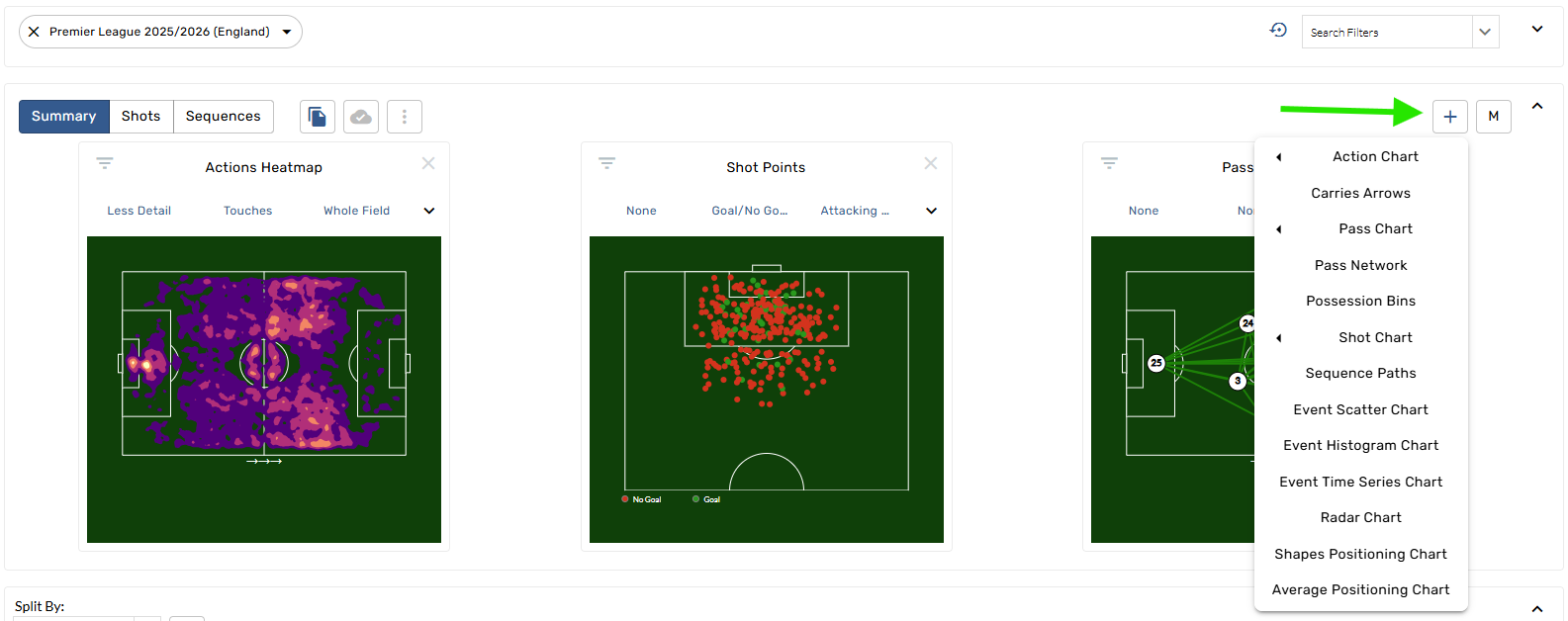
Add a new graphic
-
Tap the + button in the top right corner of the graphics bar.
-
Select a new graphic from the menu.
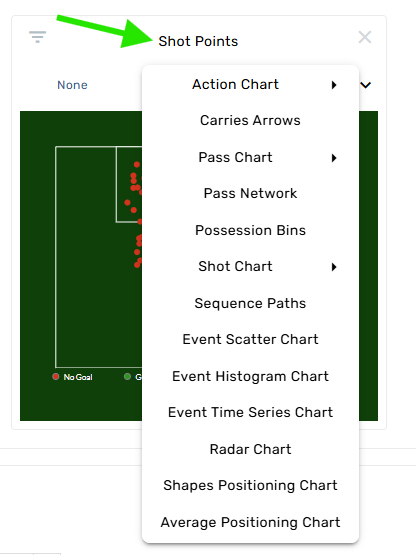
Switch a graphic
-
Tap the title of the graphic.
-
Choose from the menu of options.
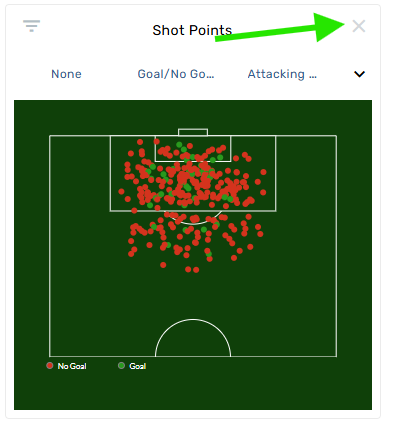
Remove a graphic
-
Tap the X button in the top right corner of a graphic.
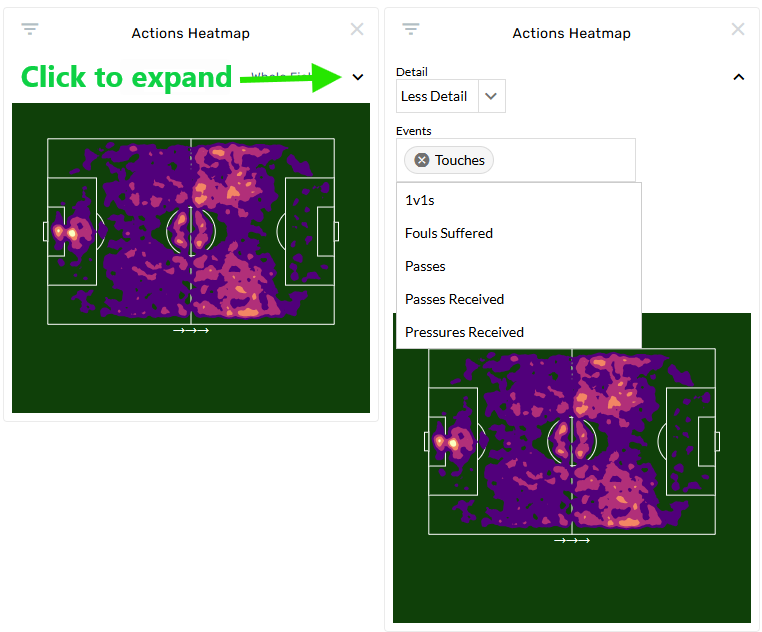
Customize the graphic settings
-
Open the individual graphic settings.
-
Choose from the menu of options.
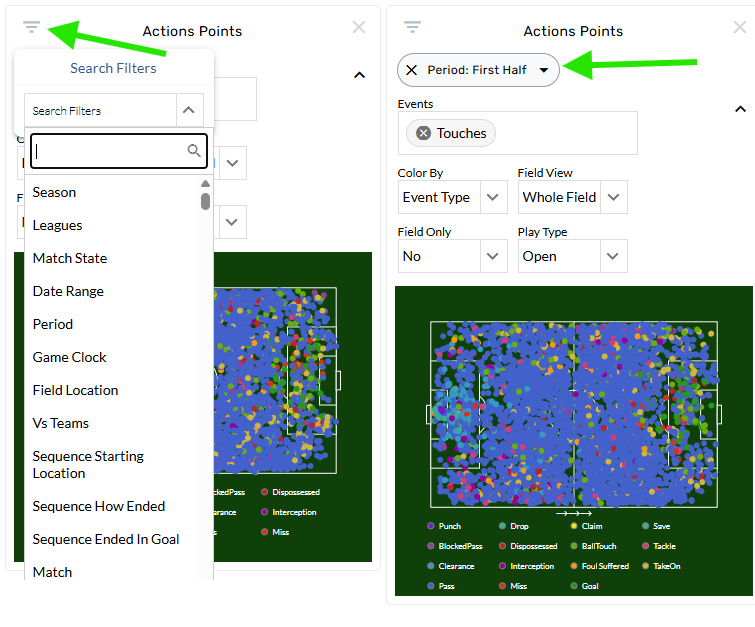
Individual graphic filters
-
Select the individual graphic filters icon.
-
Choose from the menu of options.
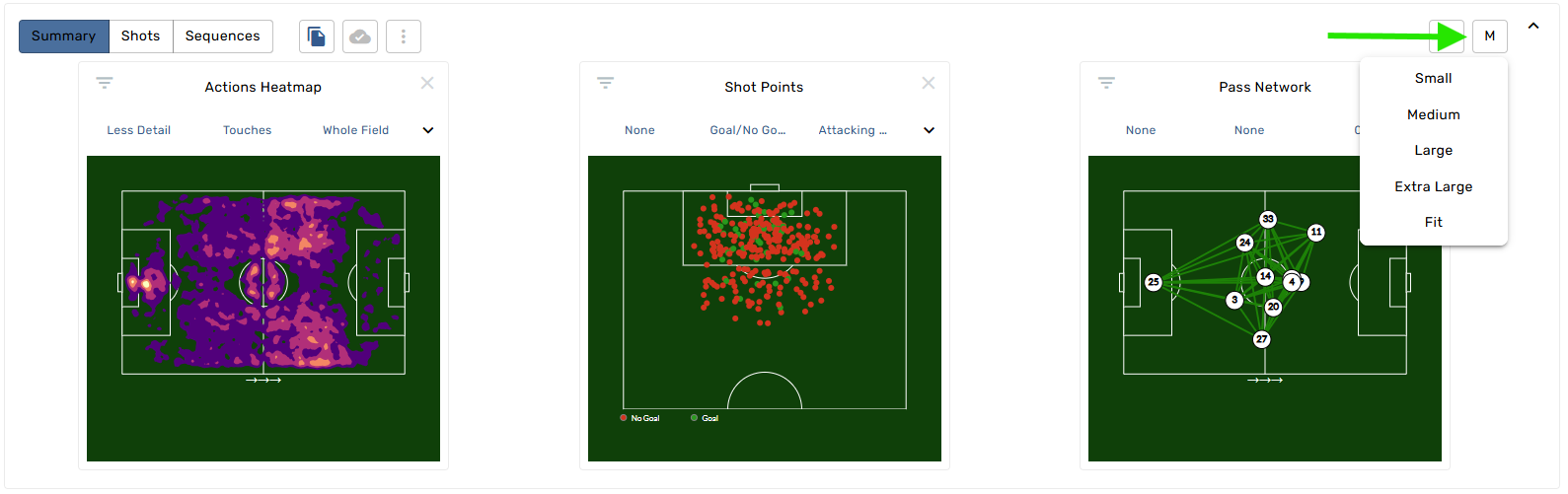
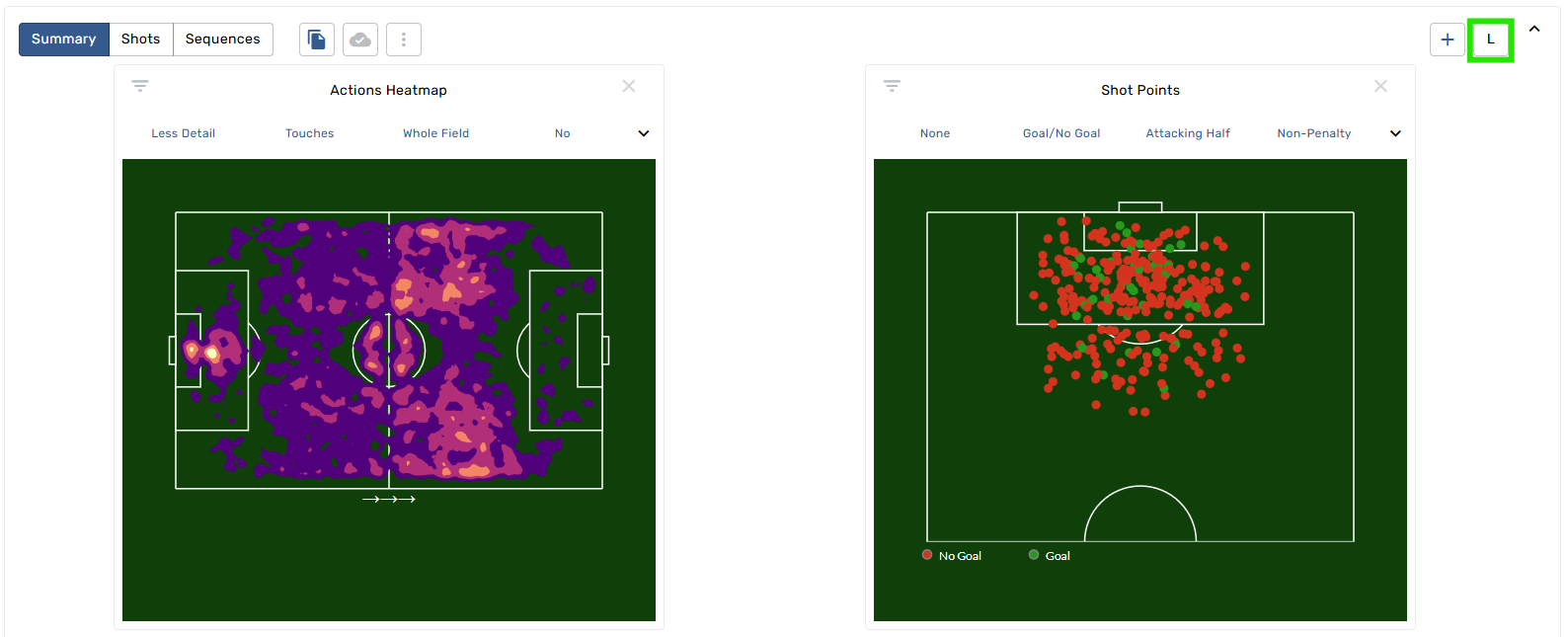
Change the size of the graphics
-
Open the size menu in the top right corner of the graphics bar.
-
Select a new size from the available options.
Save a configuration of graphics
-
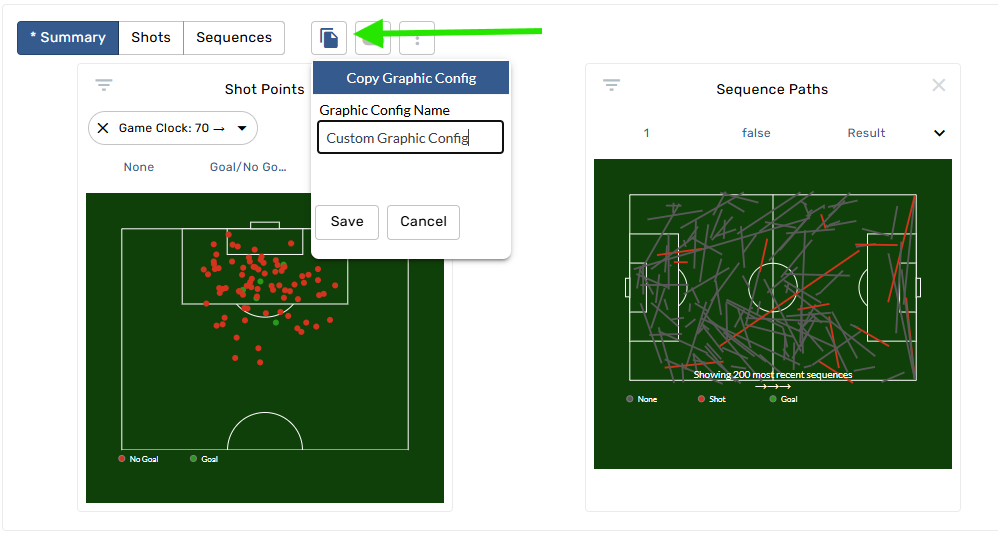
Open the Create Graphic Config menu.
-
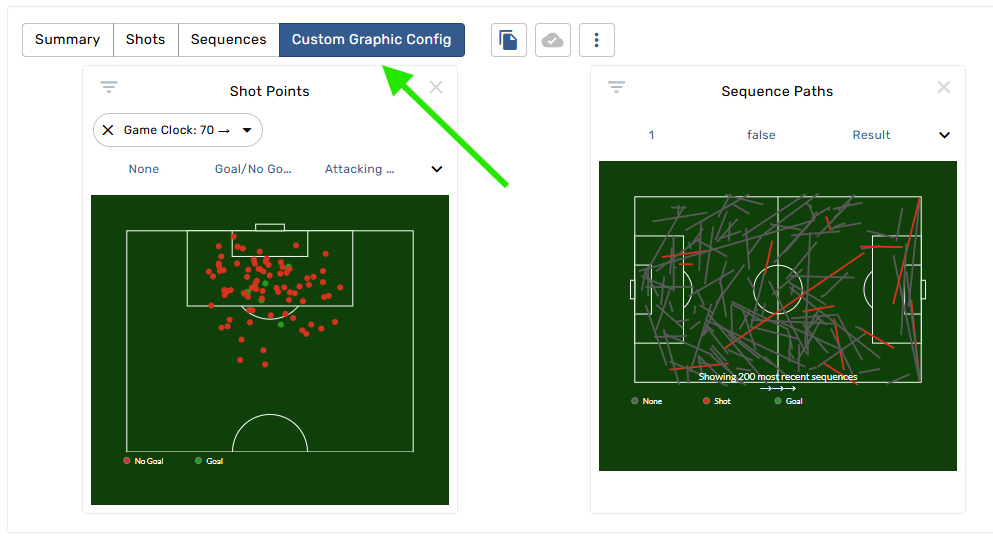
Name the configuration and tap the save button.
Share a graphics configuration
-
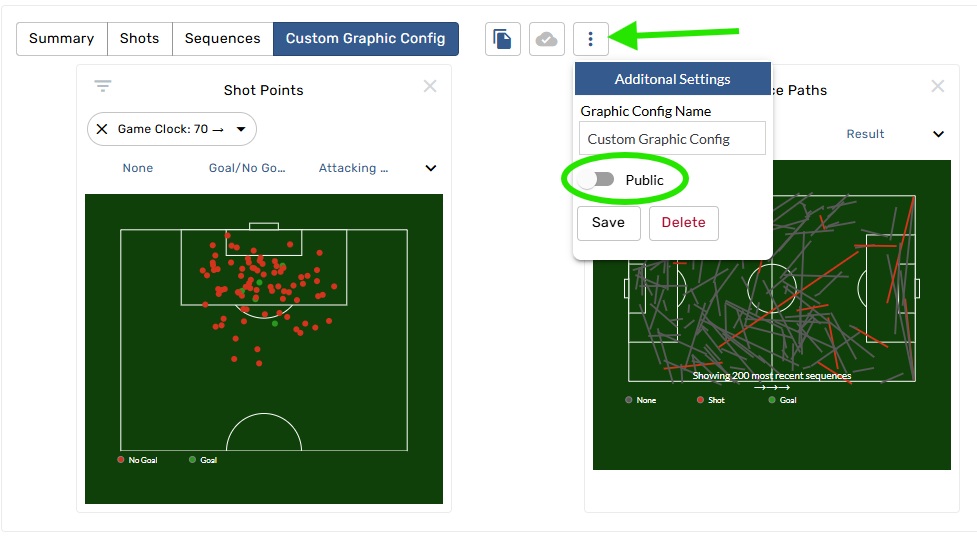
Open the Additional settings menu.
-
Toggle the Public option and tap Save.
You need an Admin account to make this public.
Contact Us
Email the Support team